How to Connect B.AI to Codex with CC Switch: Step-by-Step Visual Guide
This guide explains how to use a B.AI API key in Codex through CC Switch. After setup, Codex sends model requests to the B.AI Responses API.
- Production API URL:
https://api.b.ai/v1 - Upstream format:
Responses (native) - Recommended first model: A GPT model returned by Fetch Models
- Screenshots: CC Switch 3.20.0 on macOS
Menu names may differ slightly in later CC Switch releases. The required B.AI endpoint and Responses protocol remain the same.
Screenshots may show an example model ID. Select a currently available model through Fetch Models rather than relying on the example.
Before you begin
Make sure that you have:
- Installed Codex and completed the initial sign-in;
- Installed CC Switch from its trusted release channel;
- Created a valid B.AI production API key;
- Confirmed that your B.AI account has access to the model you want to use and has sufficient balance.
Treat your API key as a password. Never include it in screenshots, chat messages, support tickets, source code, or public repositories.
1. Use the English interface
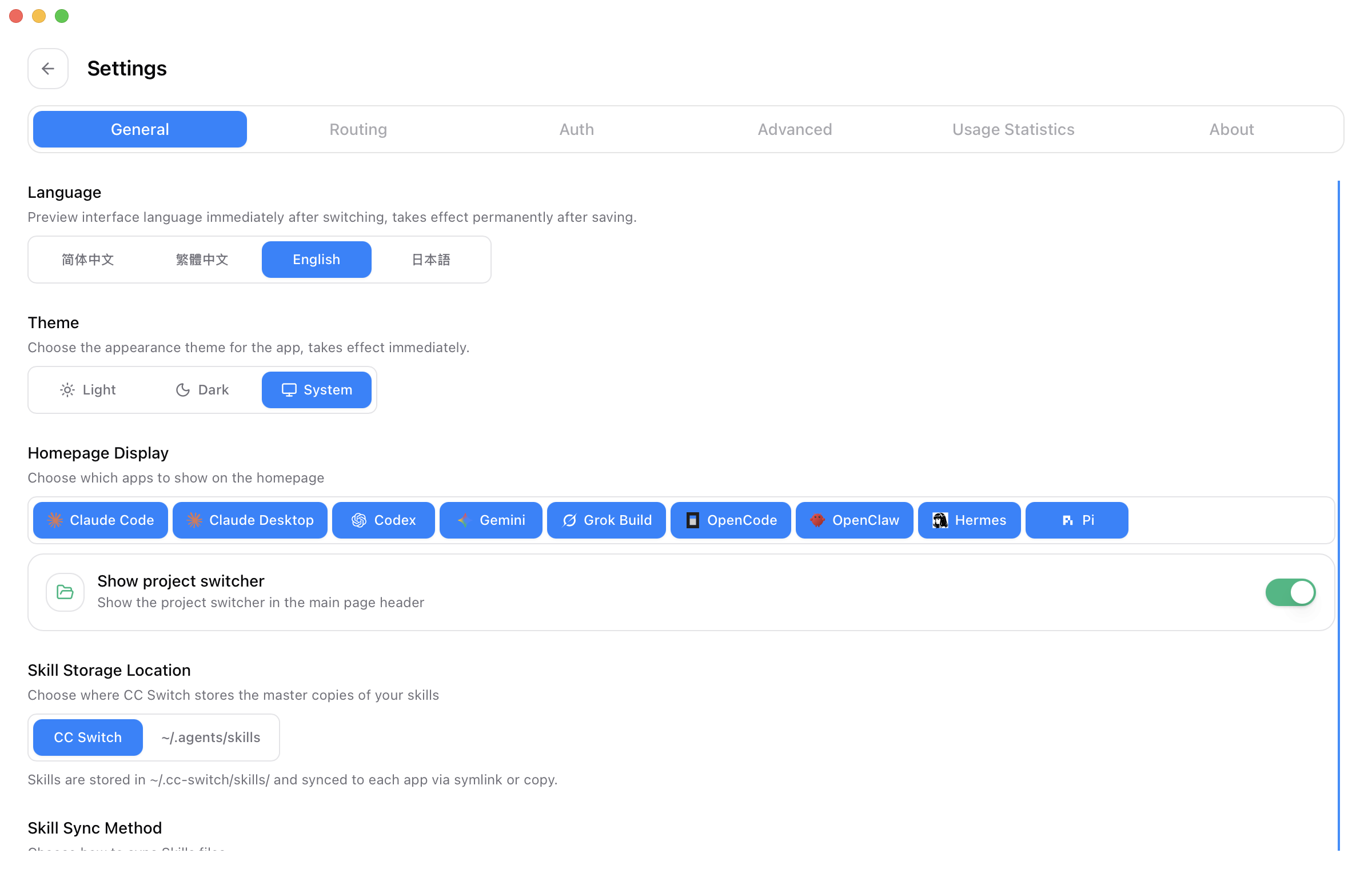
In CC Switch, open Settings > General and select English under Language.
2. Keep the official Codex login
If you want to switch between B.AI and OpenAI Official, open Settings > General and enable Keep official login for direct switches under Codex App Enhancements.
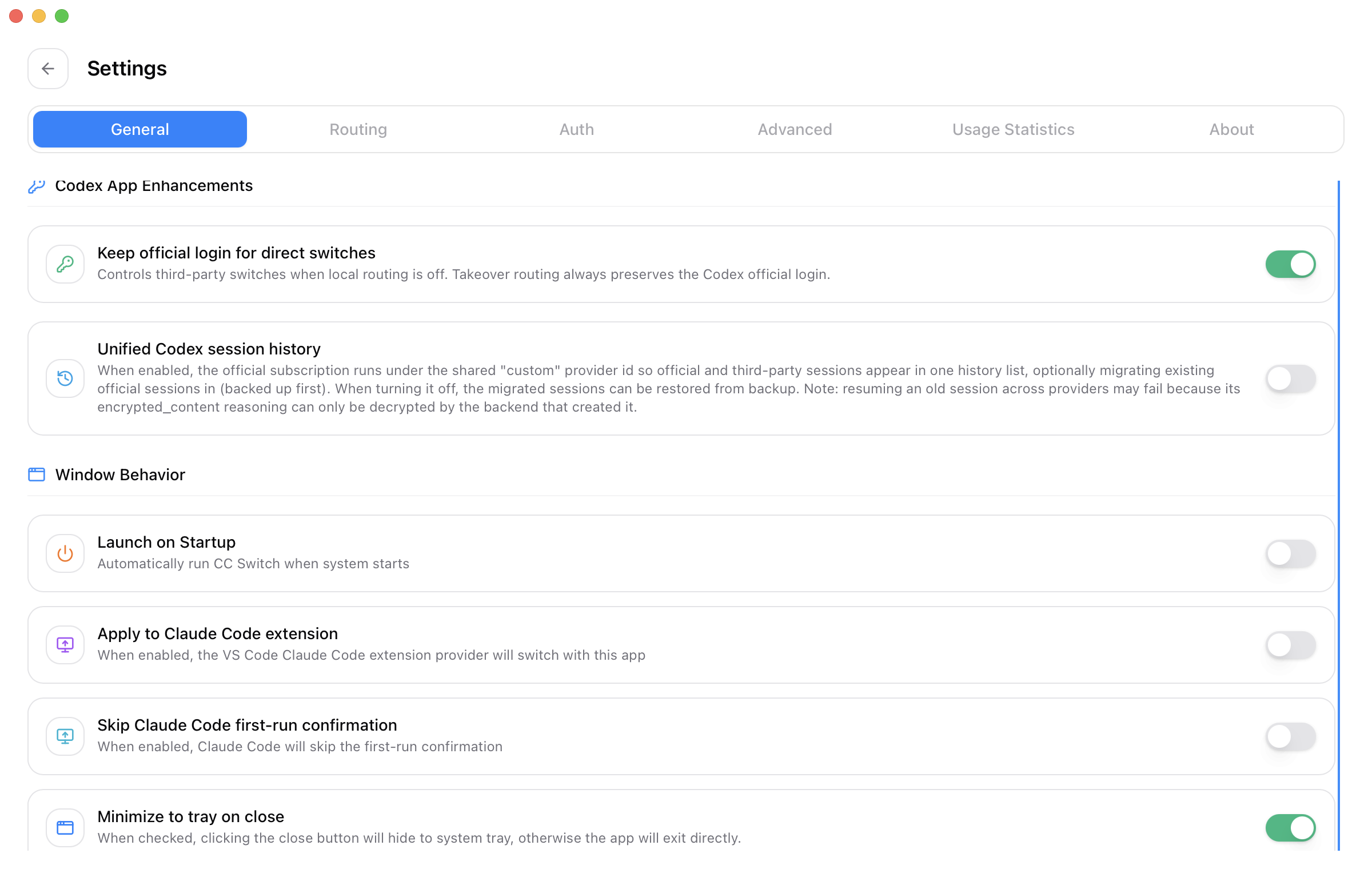
When this option is enabled, Codex may continue to show your signed-in OpenAI account while B.AI is active. This is expected. The provider marked In Use in CC Switch determines where model requests are sent.
3. Add a Codex provider
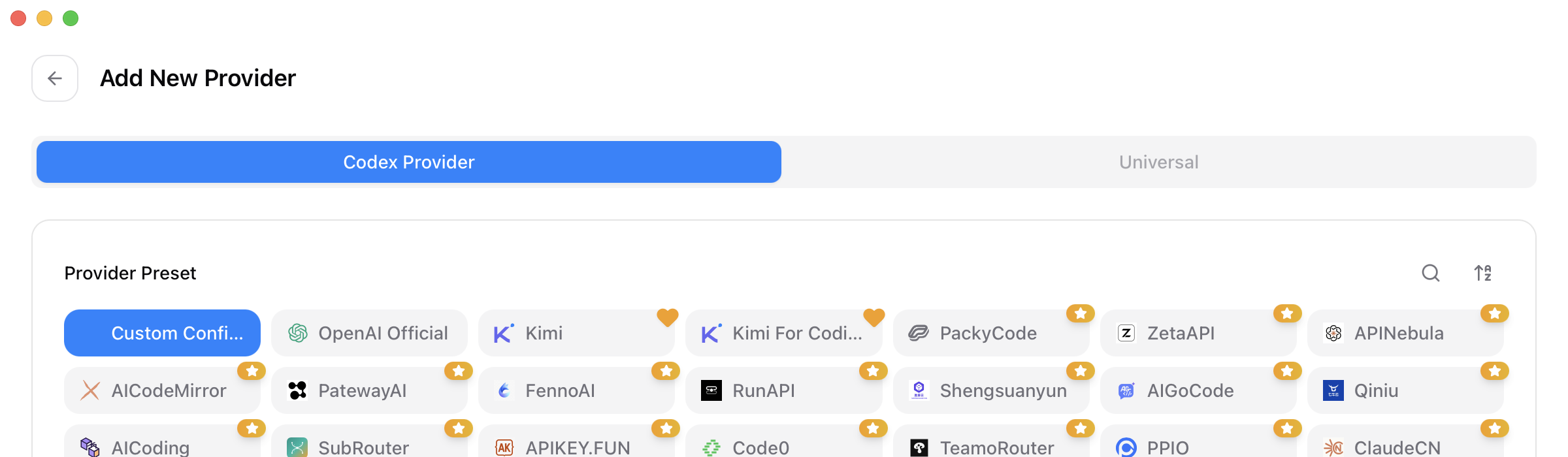
Return to the CC Switch home page, select Codex in the application bar, and click the orange + button.
Under Codex Provider, select Custom Configuration.
4. Enter the B.AI production settings
Complete the provider form with the following values:
| Field | Value |
|---|---|
| Provider Name | B.AI Production |
| Website URL | https://b.ai/ |
| API Key | Your B.AI production API key |
| API Request URL | https://api.b.ai/v1 |
| Full URL | Off |
| Default Model | A GPT model returned by Fetch Models |
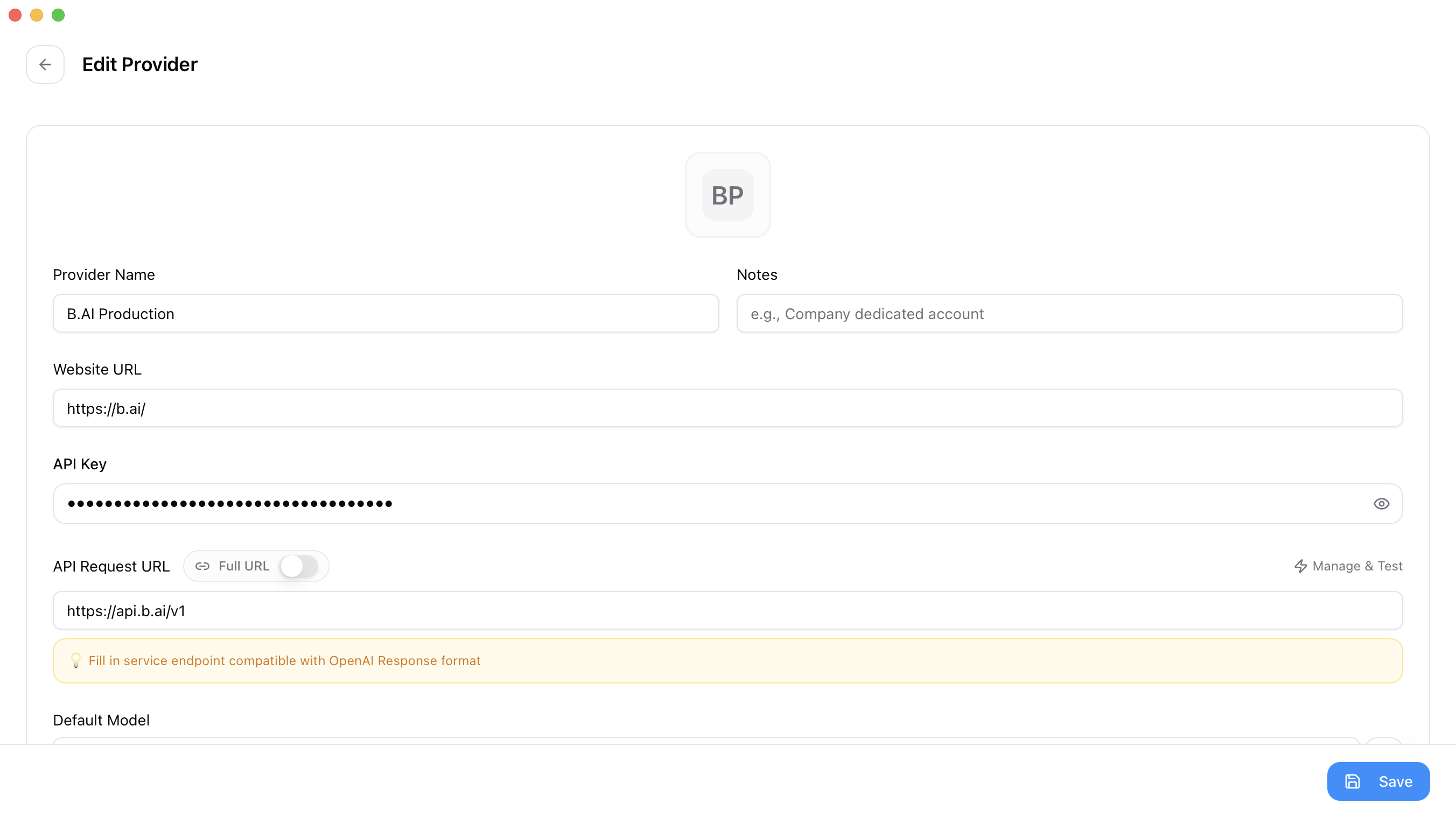
The API key is masked after entry. Do not select the eye icon before taking a screenshot or sharing your screen. CC Switch may also show the key in the generated auth.json preview farther down the editor, so keep that section out of screenshots.
5. Select the native Responses protocol
Expand Advanced Options and set Upstream Format to Responses (native).
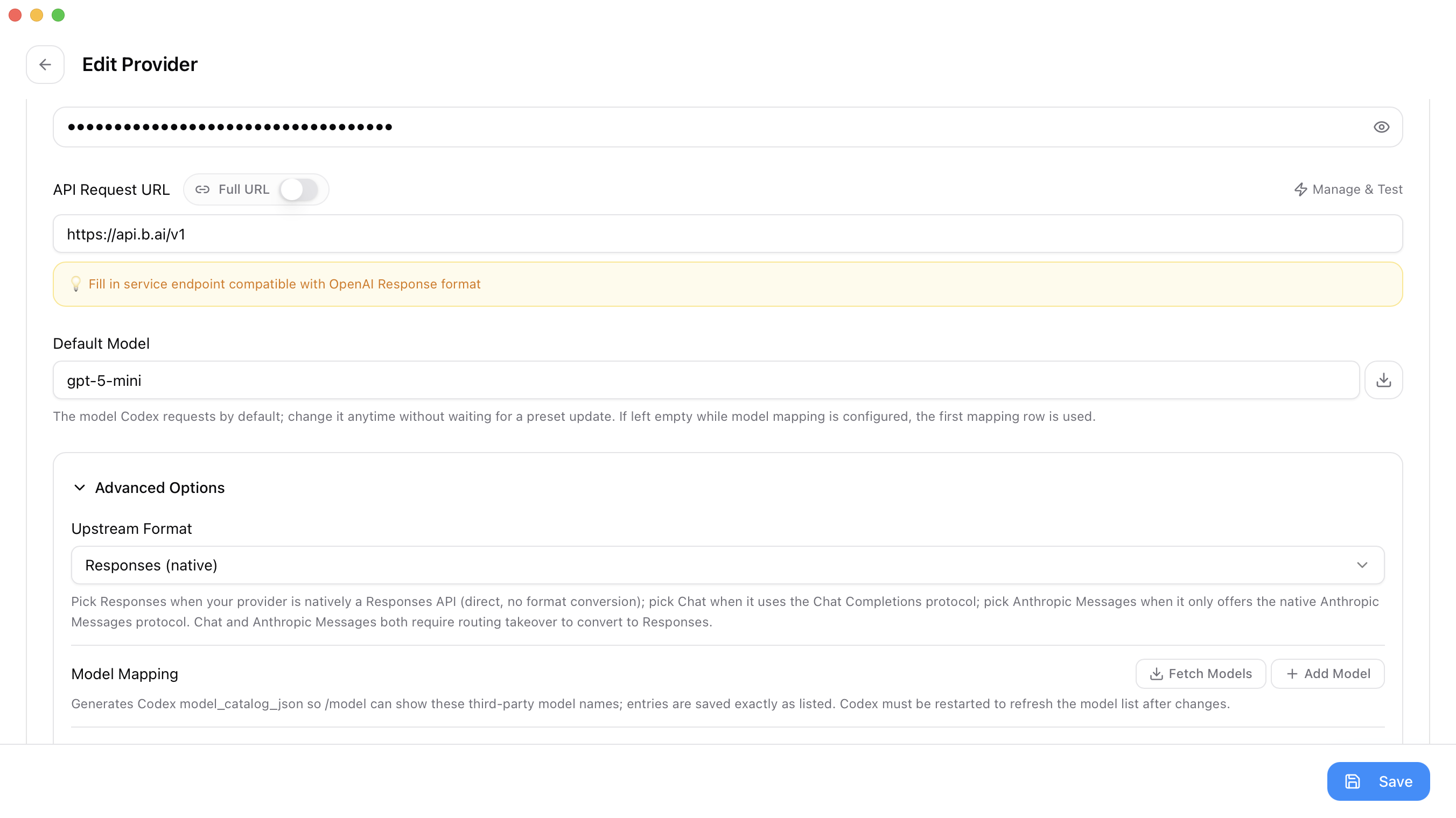
B.AI supports the Responses API natively. Local routing or protocol conversion is not required for this provider.
Click Fetch Models to check the production URL, API key, and account access. A successful result confirms that CC Switch can reach B.AI. The number of returned models may change as the platform is updated.
6. Save and enable B.AI
Click Save. Back on the Codex provider page, locate B.AI Production and click Enable.
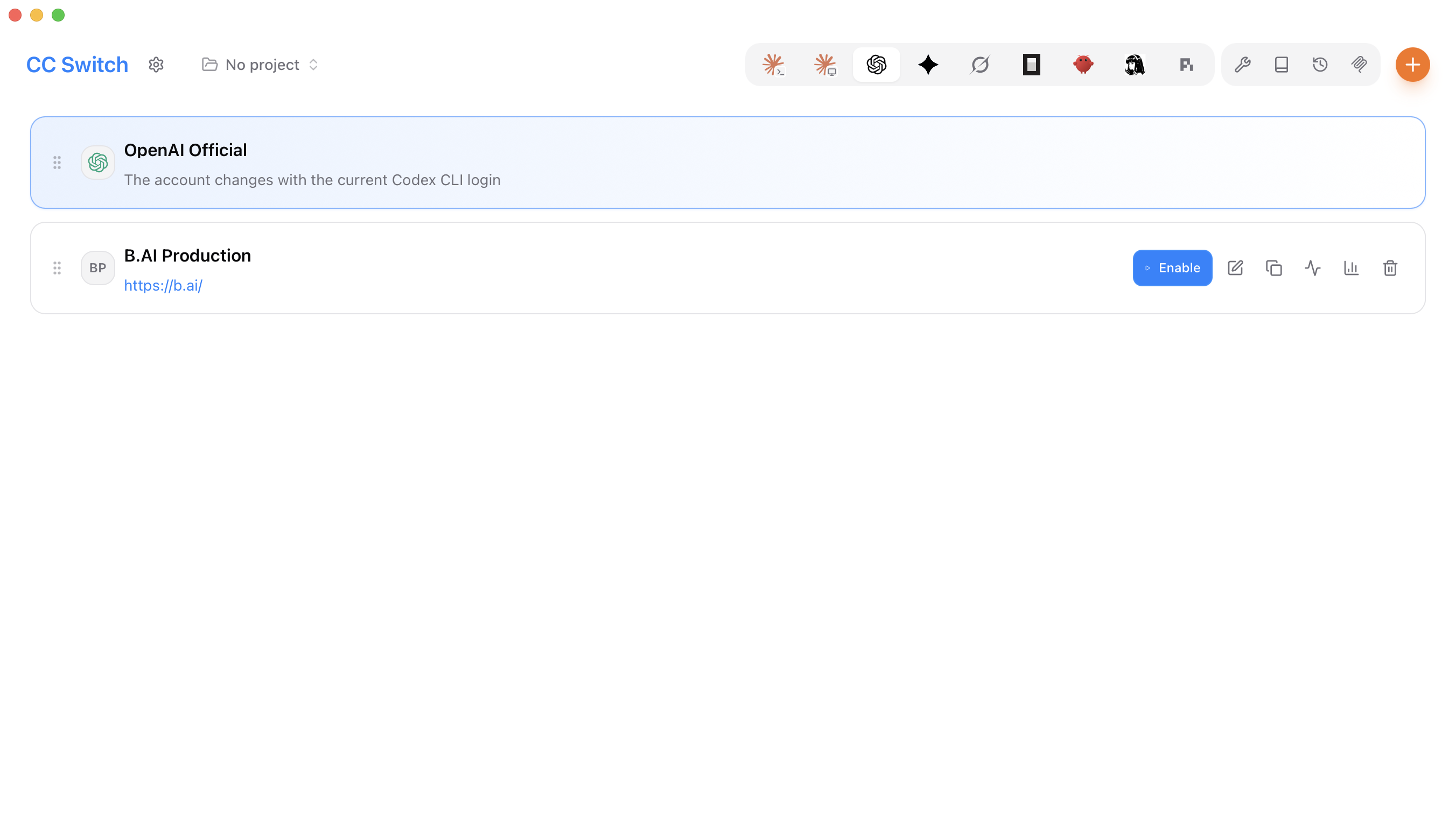
The B.AI Production card becomes highlighted and displays In Use when the switch succeeds.
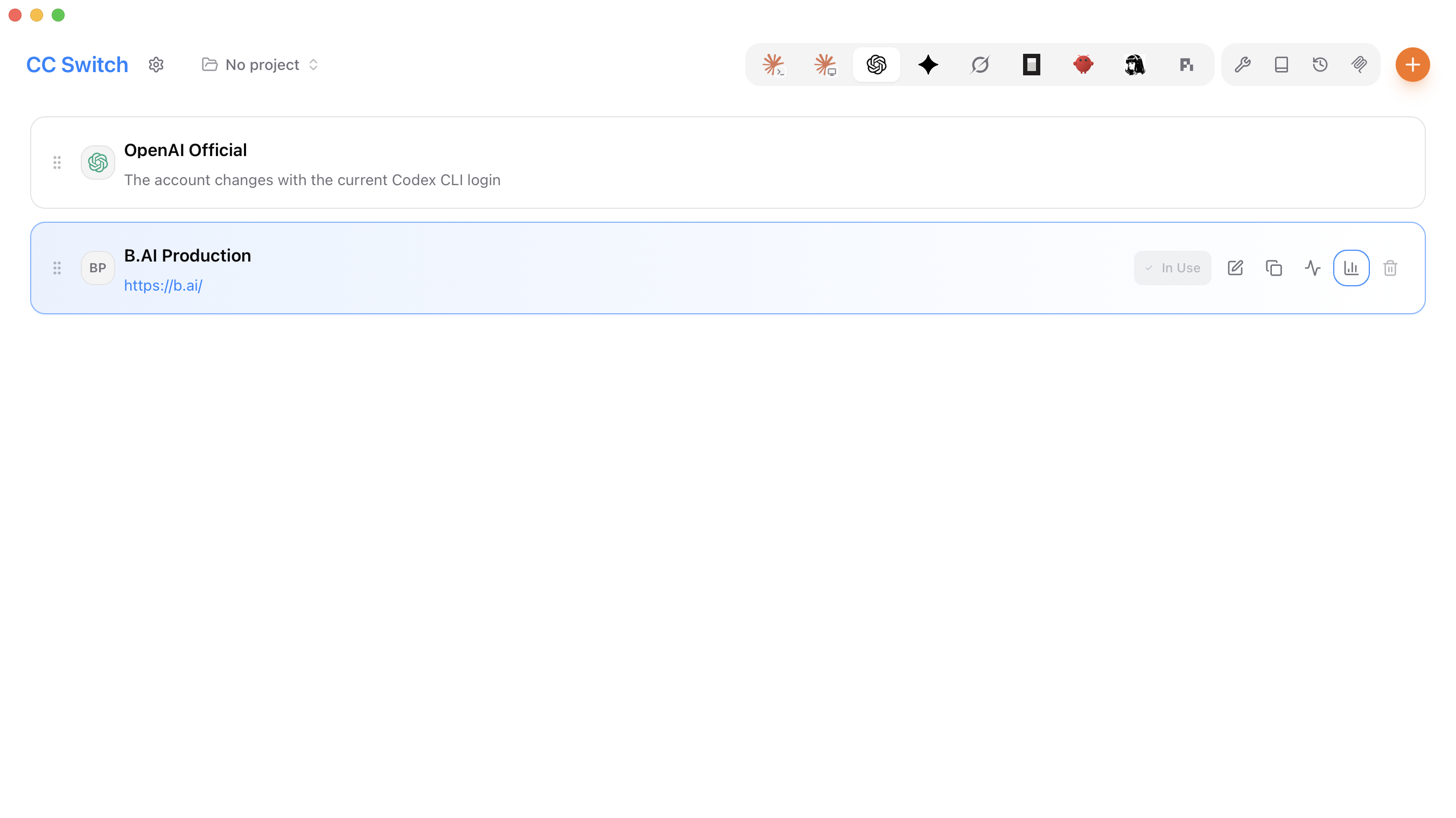
CC Switch generates the Codex configuration automatically. The effective configuration is equivalent to:
model_provider = "custom"
model = "your-model-id"

[model_providers.custom]
name = "custom"
wire_api = "responses"
requires_openai_auth = true
base_url = "https://api.b.ai/v1"
CC Switch manages the API key separately. Do not place a real key in documentation, project source code, or a committed config.toml file.
7. Restart and verify Codex
Completely quit and reopen Codex, or start a new Codex CLI session. This ensures that the provider configuration and model catalog are reloaded.
Send the following test prompt:
Reply with exactly: B.AI Codex connection successful
If Codex returns the requested text, the connection is working. You can also check the B.AI usage page to confirm that the request was processed by B.AI.
The production environment was validated using Fetch Models, non-streaming Responses, SSE streaming Responses, and an end-to-end Codex request.
8. Change the model
For the first connection, select a GPT model returned by Fetch Models. After it works, edit the provider and select another available model.
B.AI Responses API supports GPT and DeepSeek model families. This guide does not maintain a fixed model ID list because model availability depends on the B.AI account, balance, and Codex version. B.AI Responses API support does not guarantee compatibility with every Codex release; verify the selected model with the installed Codex version.
Use a DeepSeek model
Codex may expose its built-in web search tool by default, but DeepSeek models do not support that tool. Without this setting, the request may return an unsupported Web Search tool error.
After selecting a DeepSeek model, open ~/.codex/config.toml and add this top-level option:
web_search = "disabled"
Keep the option above and outside the [model_providers.custom] block. Save the file, fully quit Codex, and restart it. This setting is required when using DeepSeek; remove or change it when switching to a model configuration that uses web search.
9. Switch back to OpenAI Official
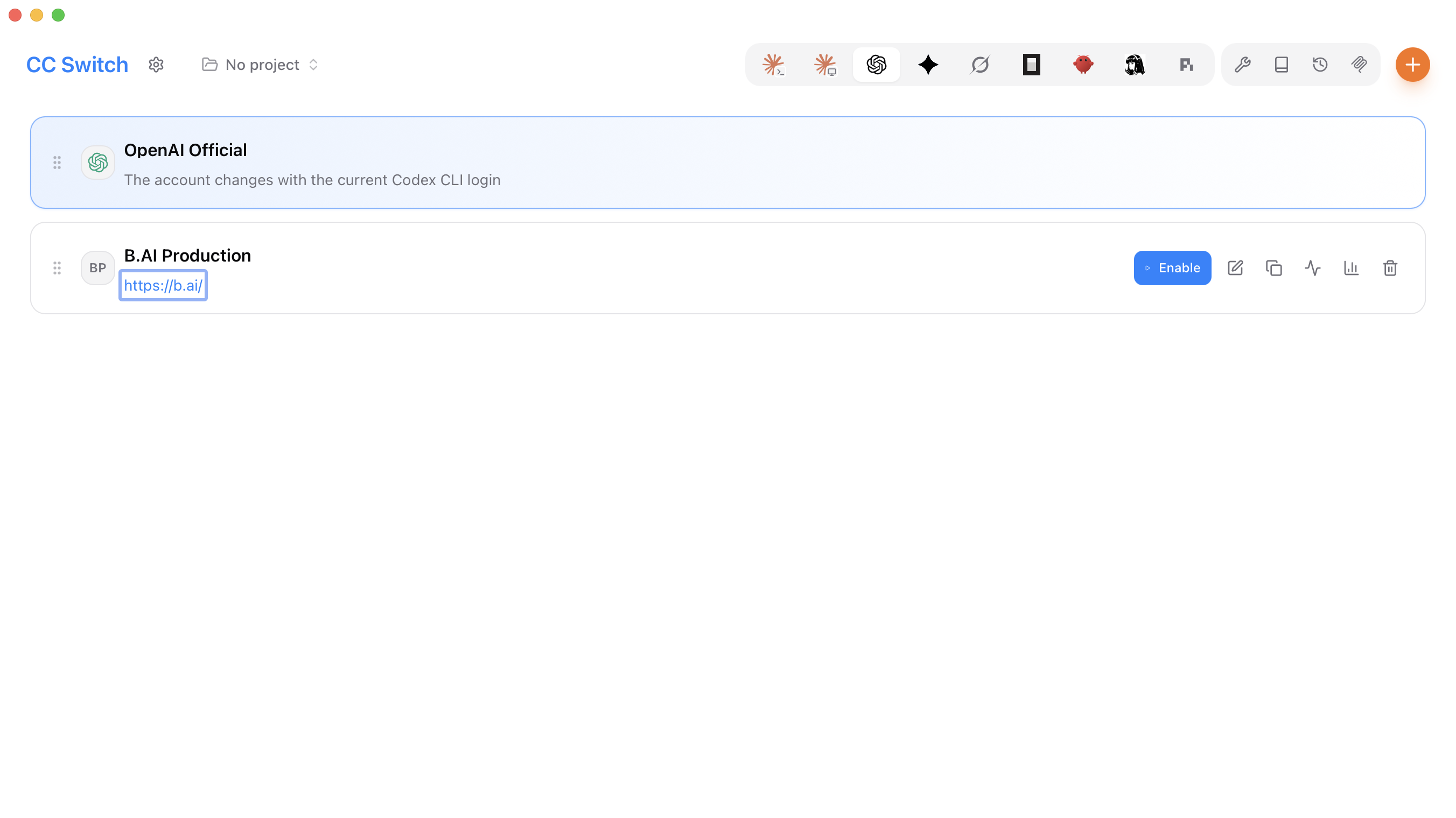
To restore the official Codex provider, locate OpenAI Official and click Enable.
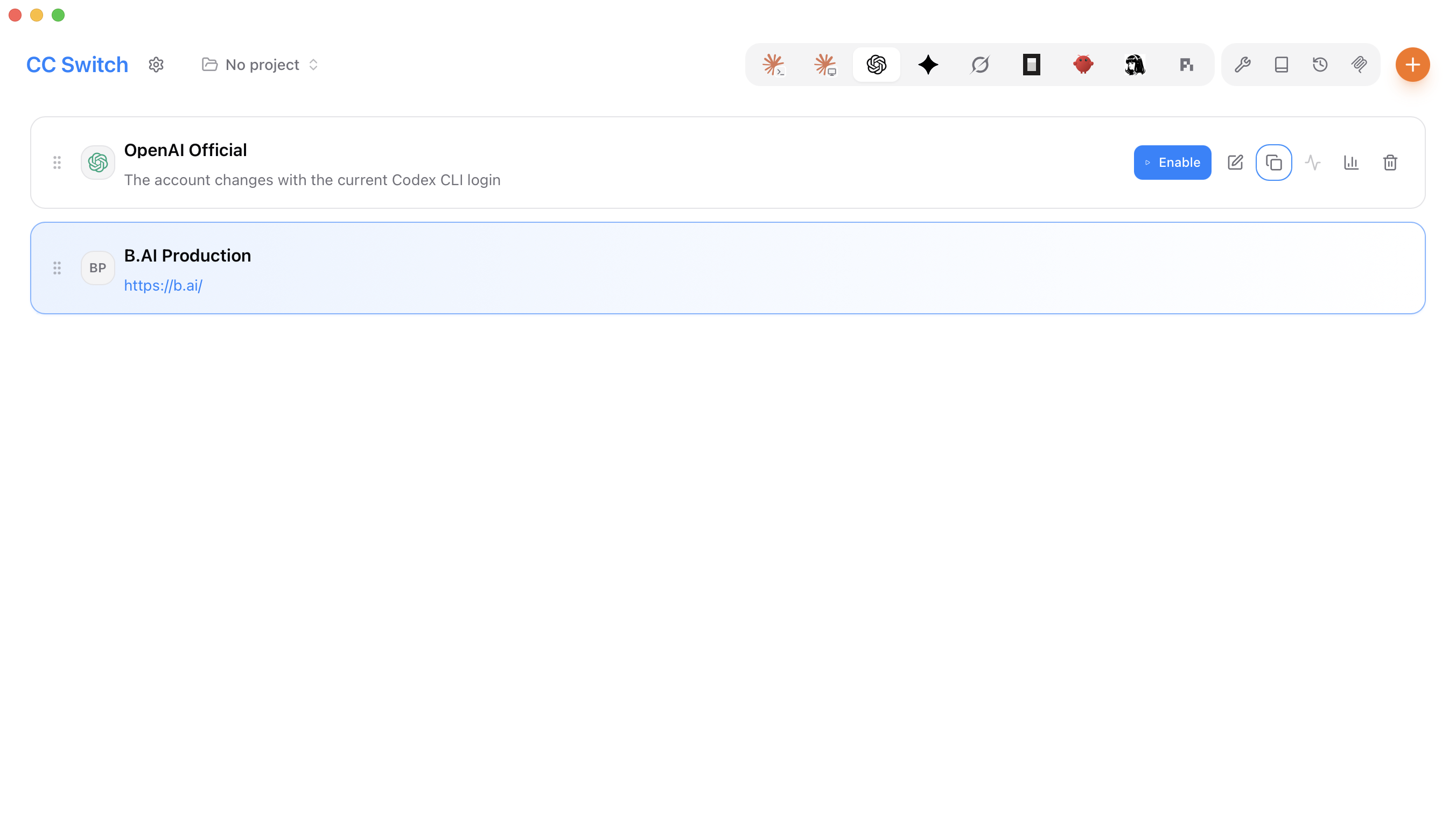
The OpenAI Official card becomes highlighted after the switch.
For Codex CLI, you can check the login state with:
codex login status
A signed-in official account normally returns:
Logged in using ChatGPT
Troubleshooting
| Issue | What to check |
|---|---|
| Models cannot be fetched | Confirm that the URL is https://api.b.ai/v1, the production key is valid, and the account has available balance. |
401 Unauthorized | The API key is missing, invalid, or belongs to a different environment. Make sure you are not using a staging key. |
403 Forbidden | Check the account status, balance, and model access. |
| Model not found | Use the exact model ID returned by Fetch Models and confirm that the model supports Responses. |
| DeepSeek request reports an unsupported web search tool | Add the top-level web_search = "disabled" setting to ~/.codex/config.toml, then restart Codex. |
| Codex still uses the previous provider | Confirm that the intended provider is highlighted in CC Switch, then fully restart Codex. |
| Codex still shows the official account | This is expected when Keep official login for direct switches is enabled. Check the active provider in CC Switch. |
Security recommendations
- Download CC Switch only from a trusted release source;
- Use separate API keys for different projects or environments;
- Rotate keys regularly and revoke a key immediately if it may have been exposed;
- Never copy, share, or manually edit
~/.codex/auth.json; - Keep API keys out of screenshots, logs, public repositories, and client installers.