DingTalk
Prerequisites
- DingTalk account
Configuration Steps
1. Create an Organization
- Click Create or Join Organization
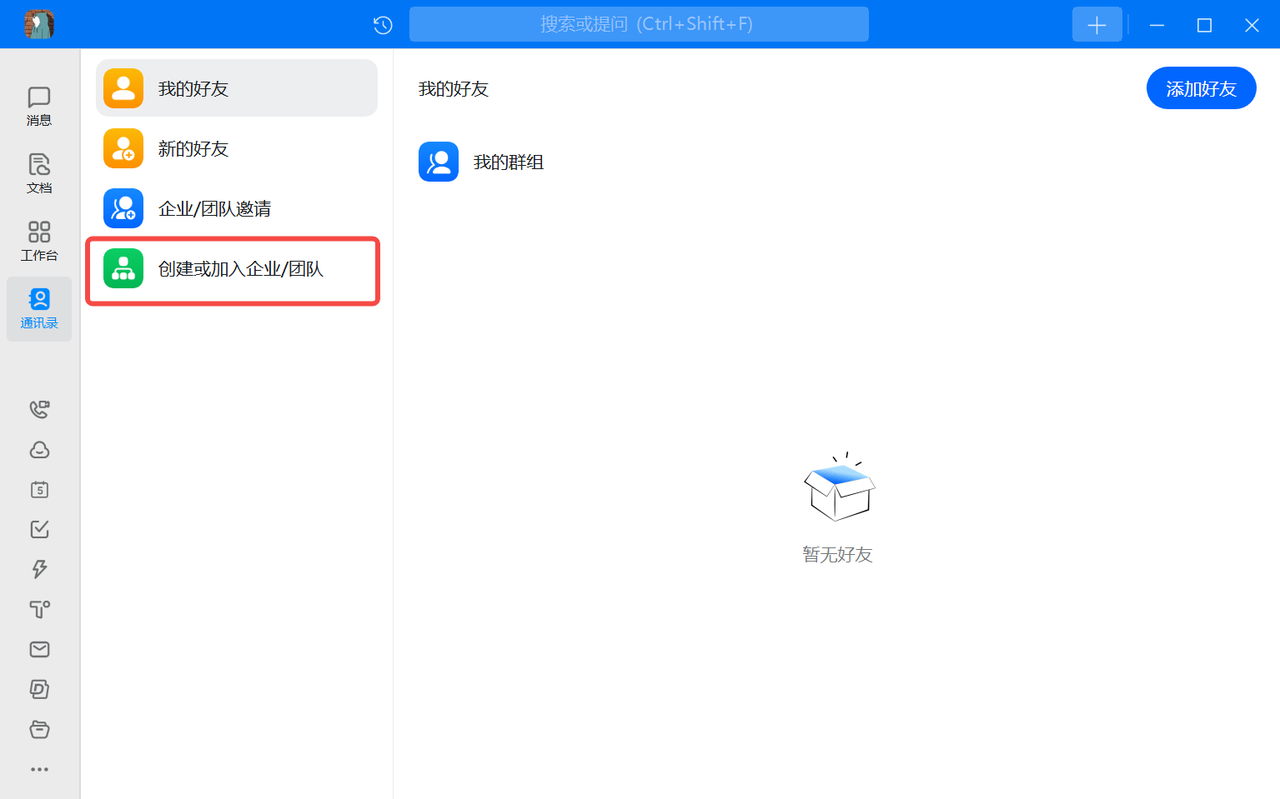
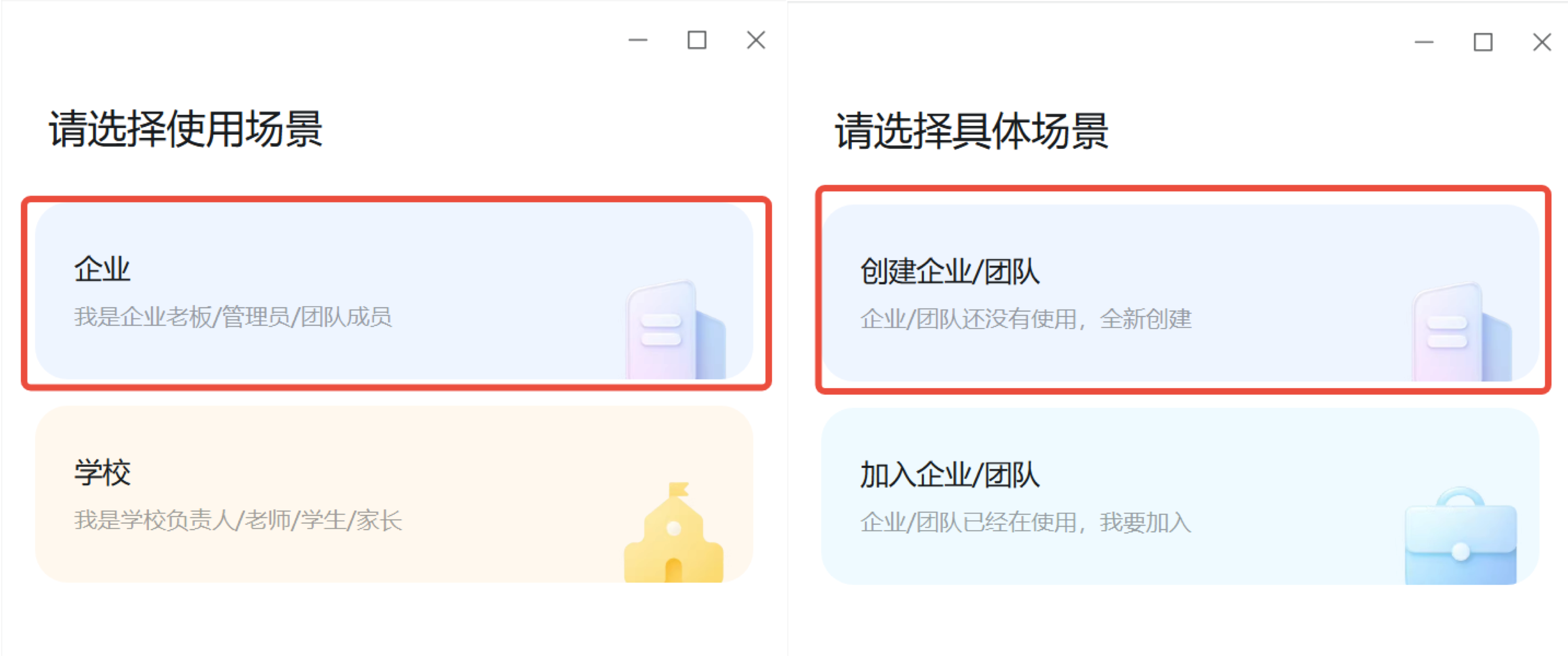
- Click "Organization", then select Create Organization/Team
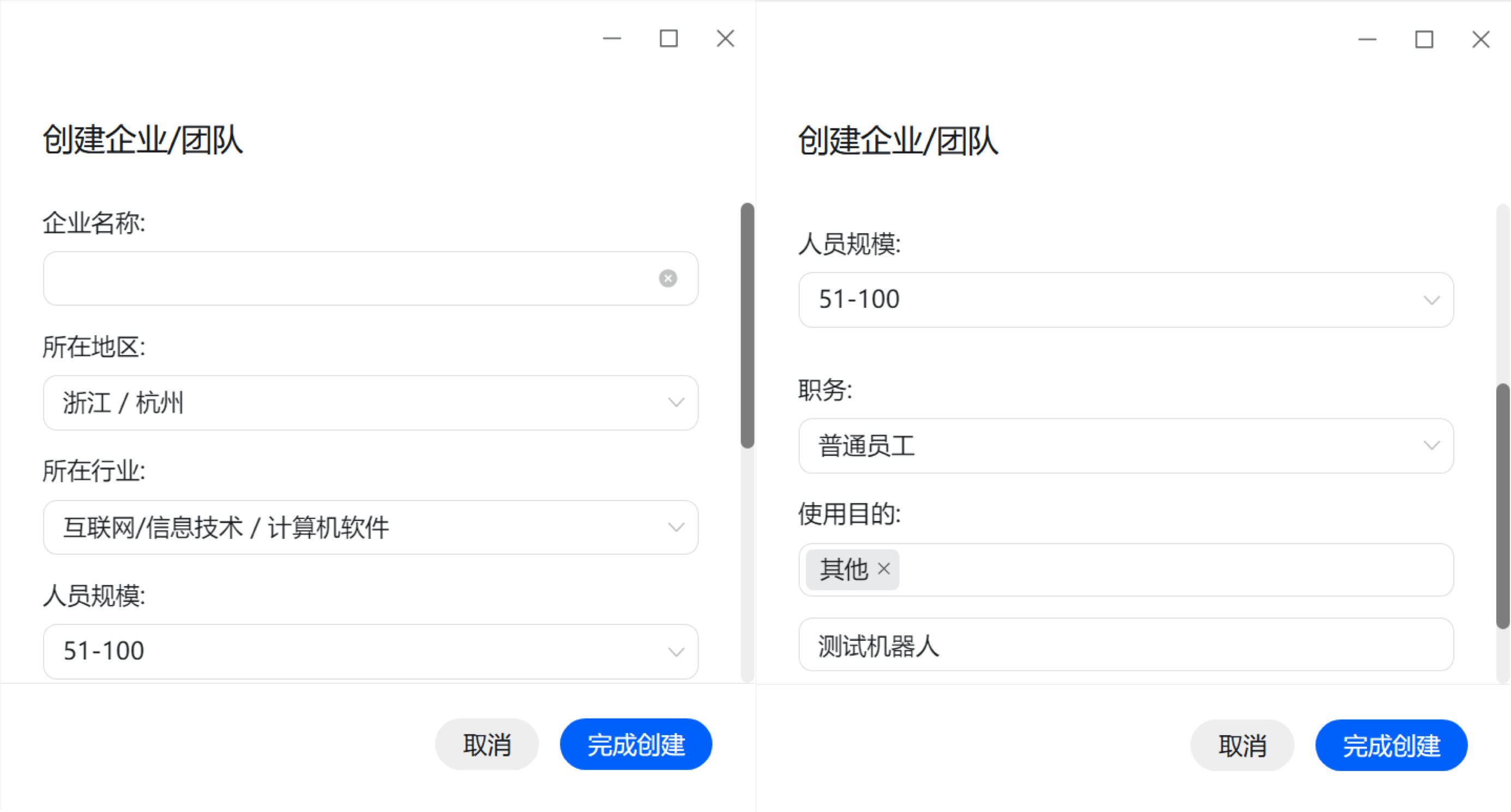
- Fill in the information and create (the "Organization Name" needs to be more than three characters, other content can be filled arbitrarily)
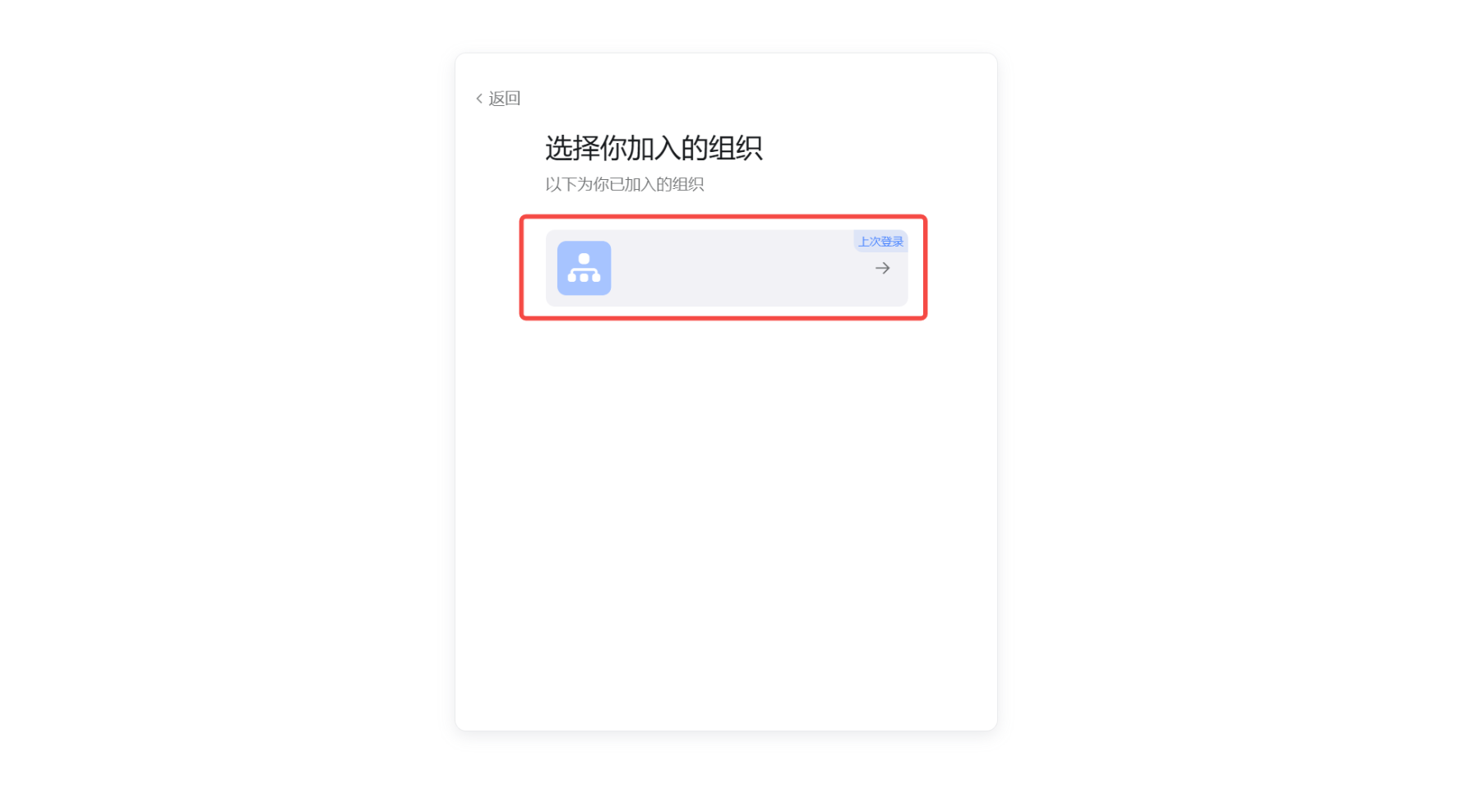
2. Create a Robot
Go to DingTalk Developer Platform, select the organization you just created.
- Select Create
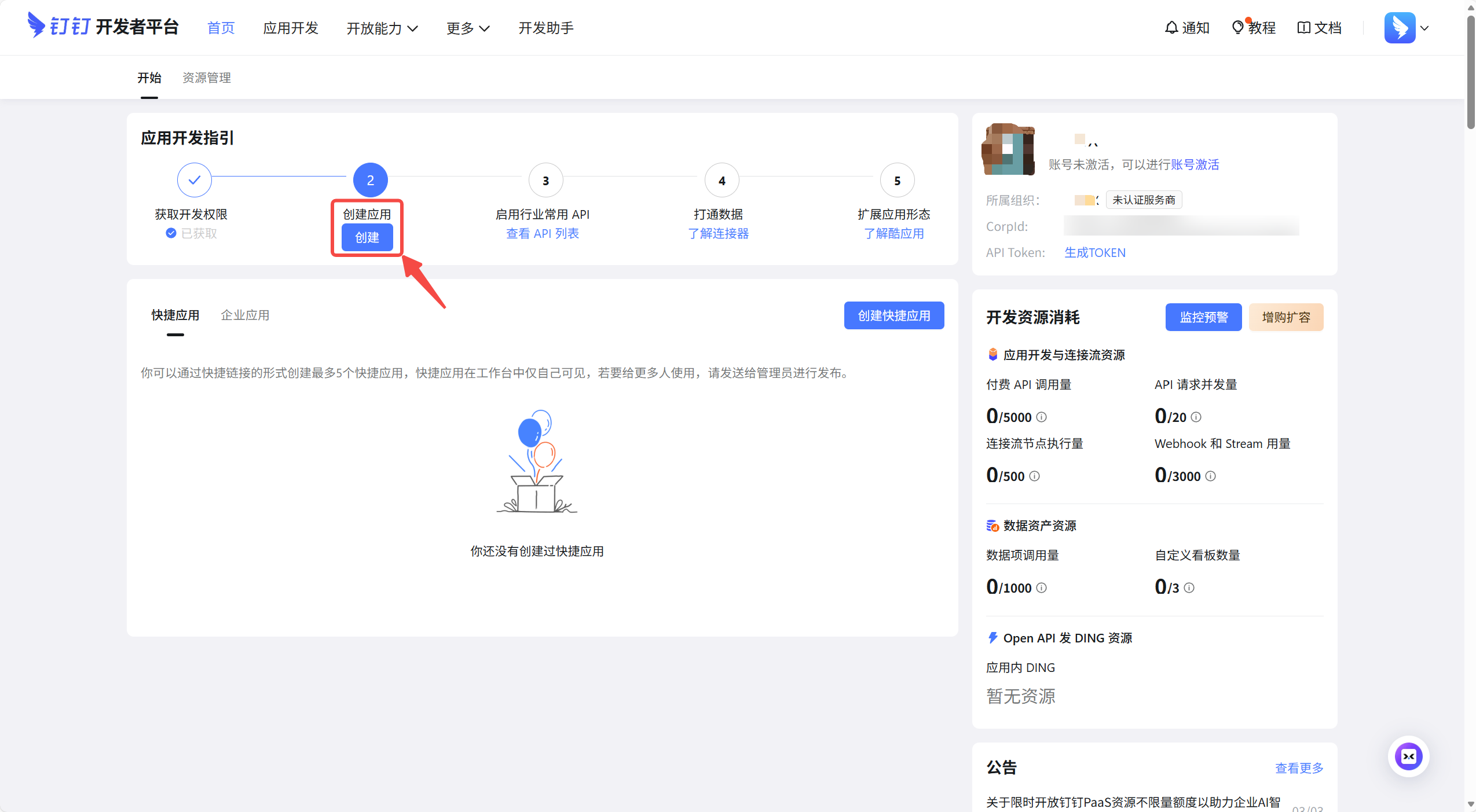
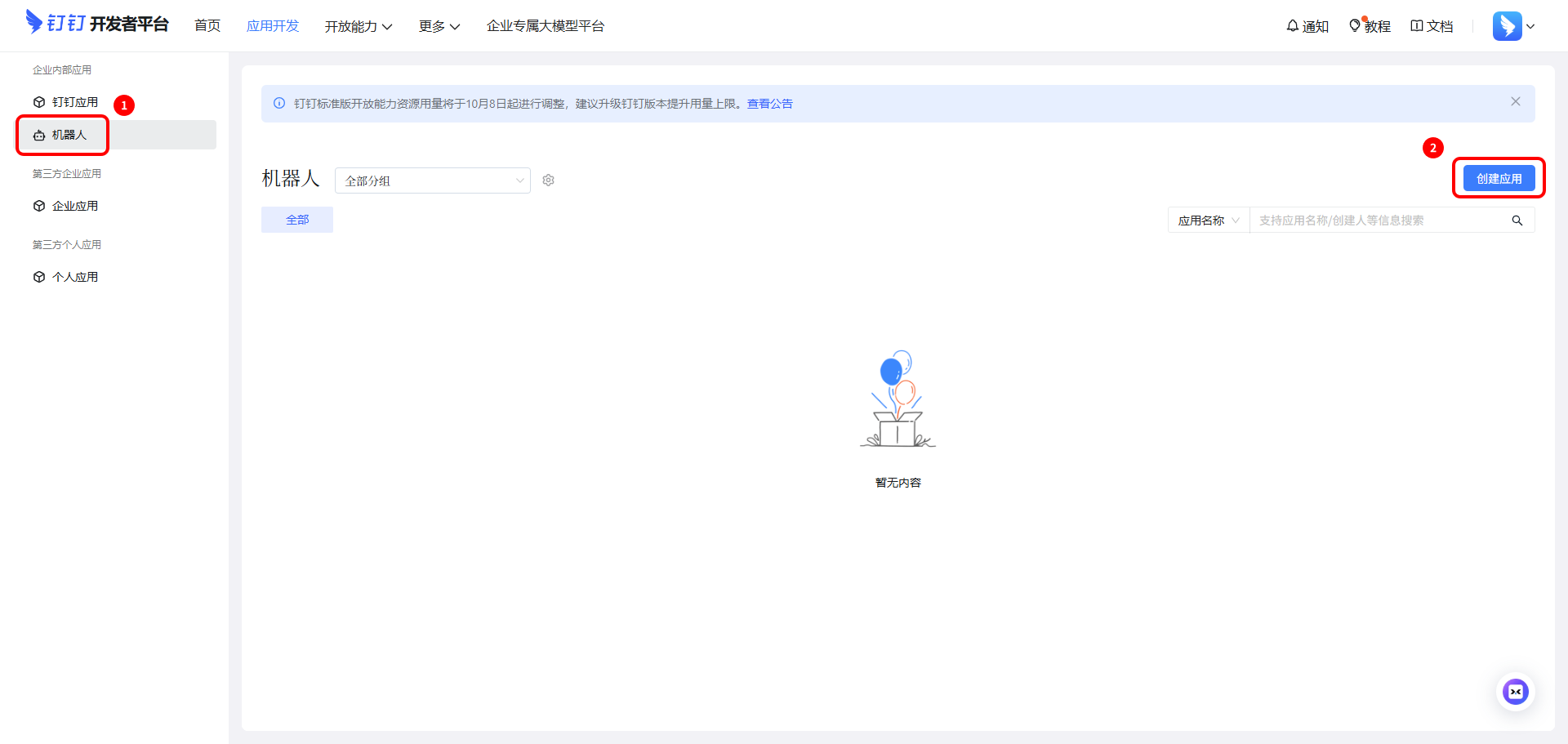
- In the left sidebar, select "Robot" and click Create Application
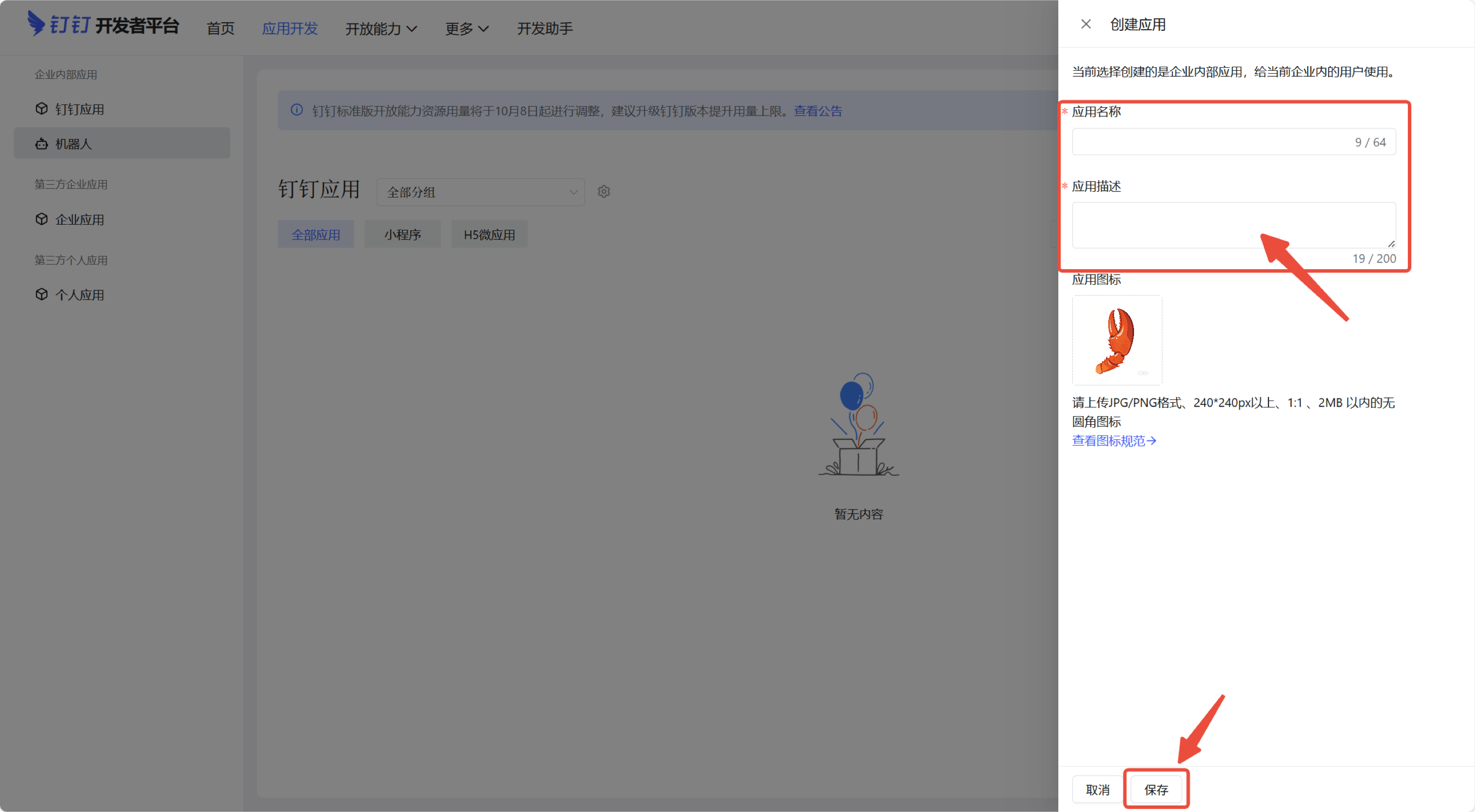
- Fill in the "Application Name" and "Application Description" and click Save
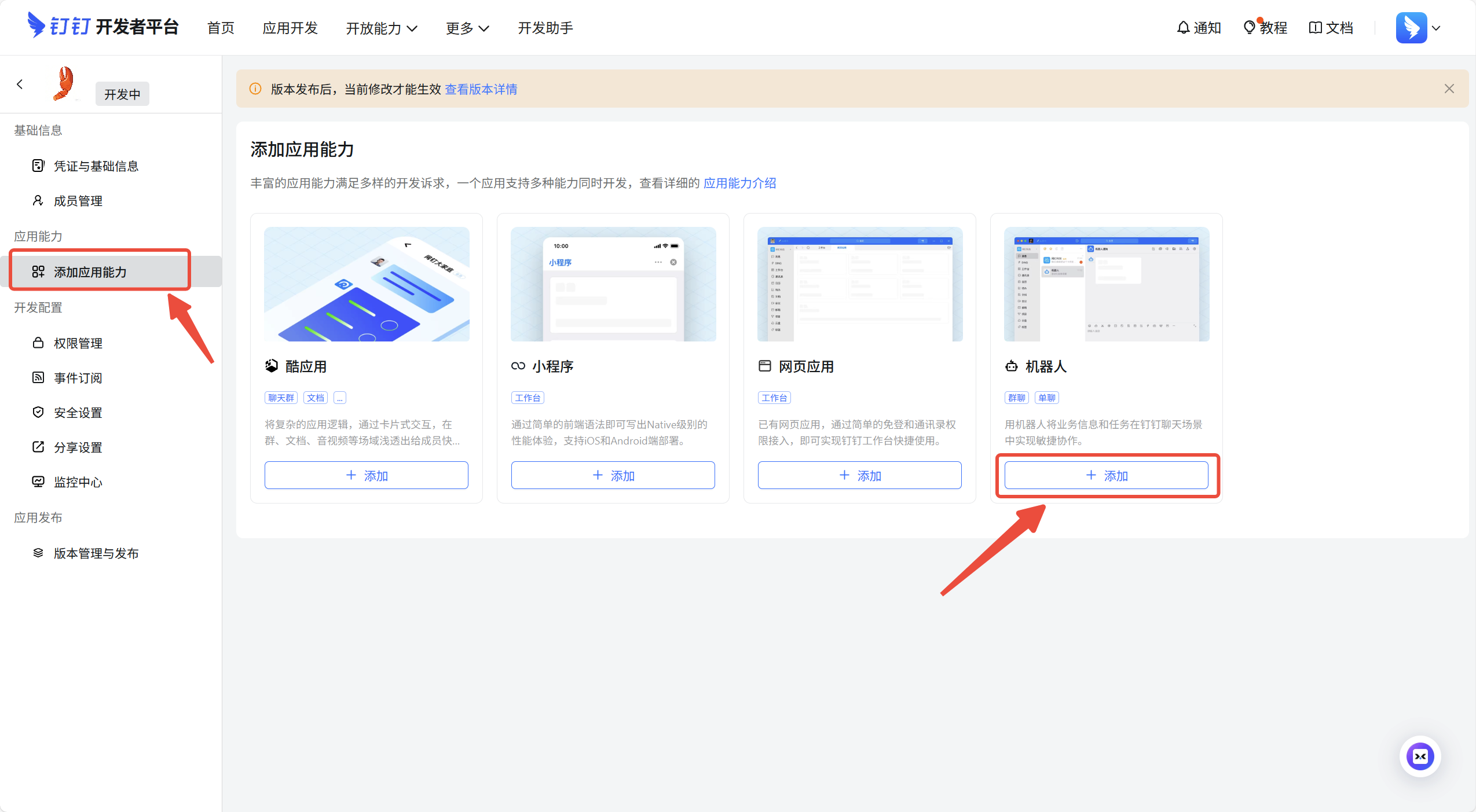
- In the left sidebar, select Add Application Capability, and choose to add "Robot"
- Enable robot configuration and fill in the content
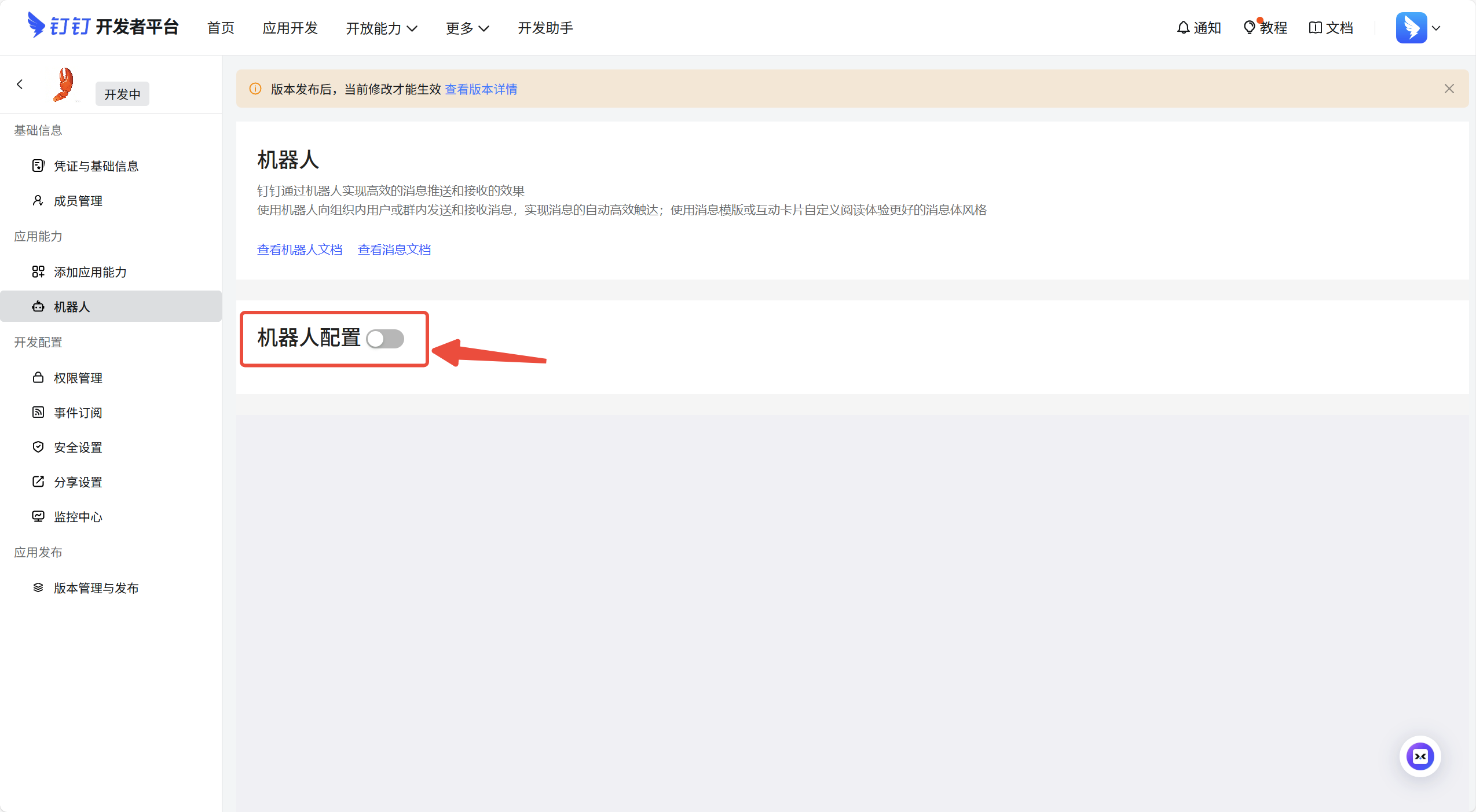
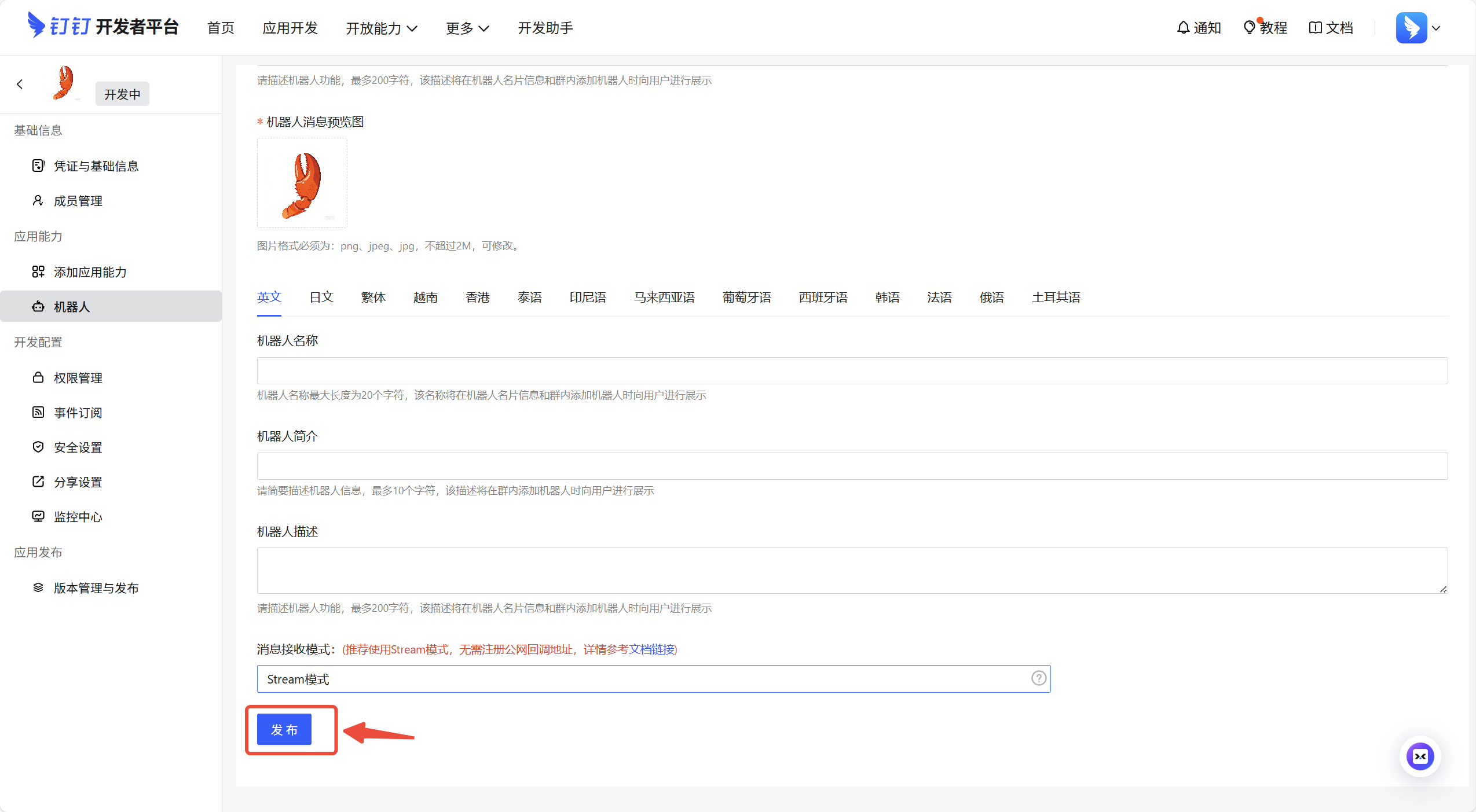
3. Adjust Permissions and Publish
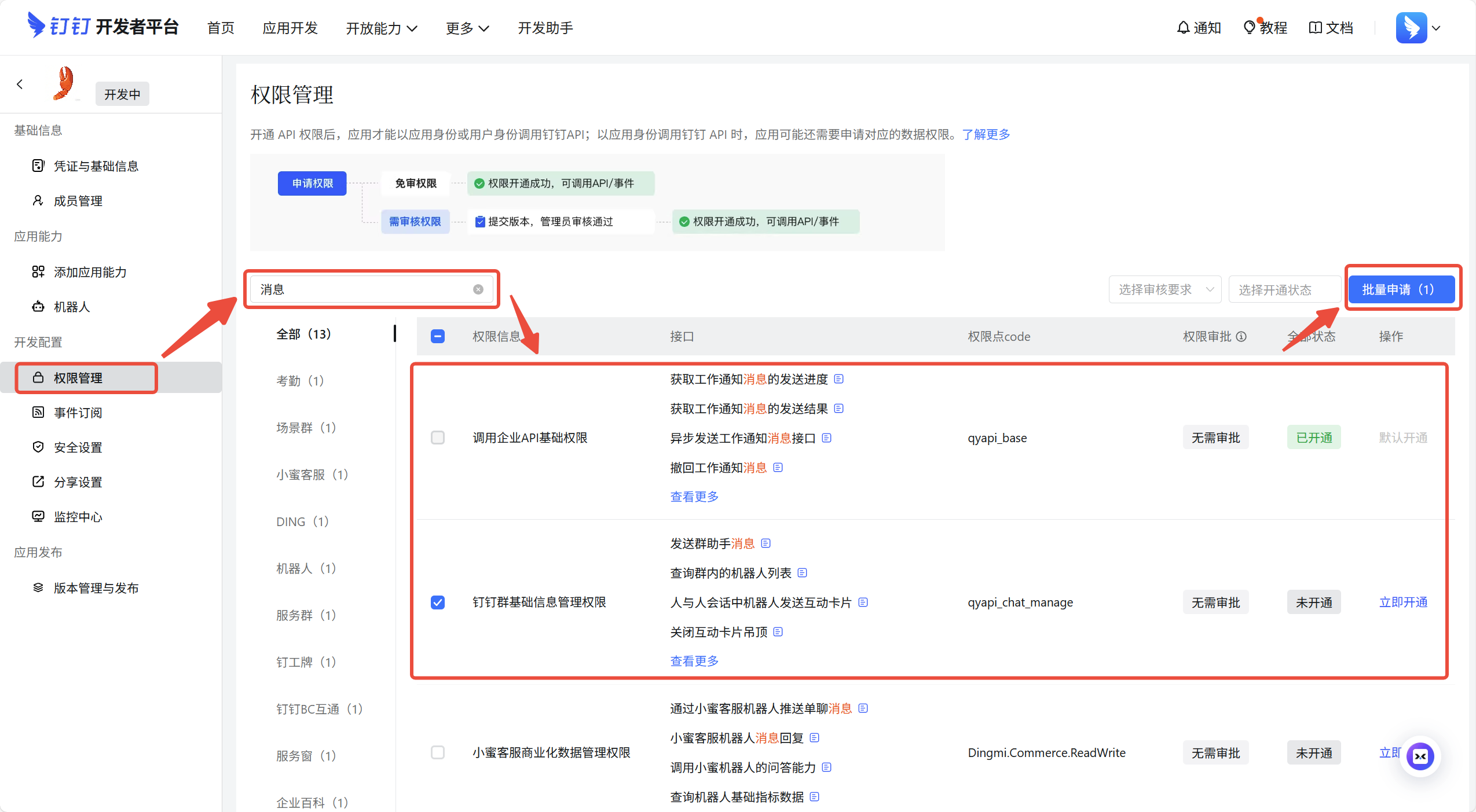
- In the left sidebar, select "Permission Management", search for "messages", check the two items in the image and click Batch Apply
- In the left sidebar, select "Version Management and Release", click Create New Version (must create version information to publish)
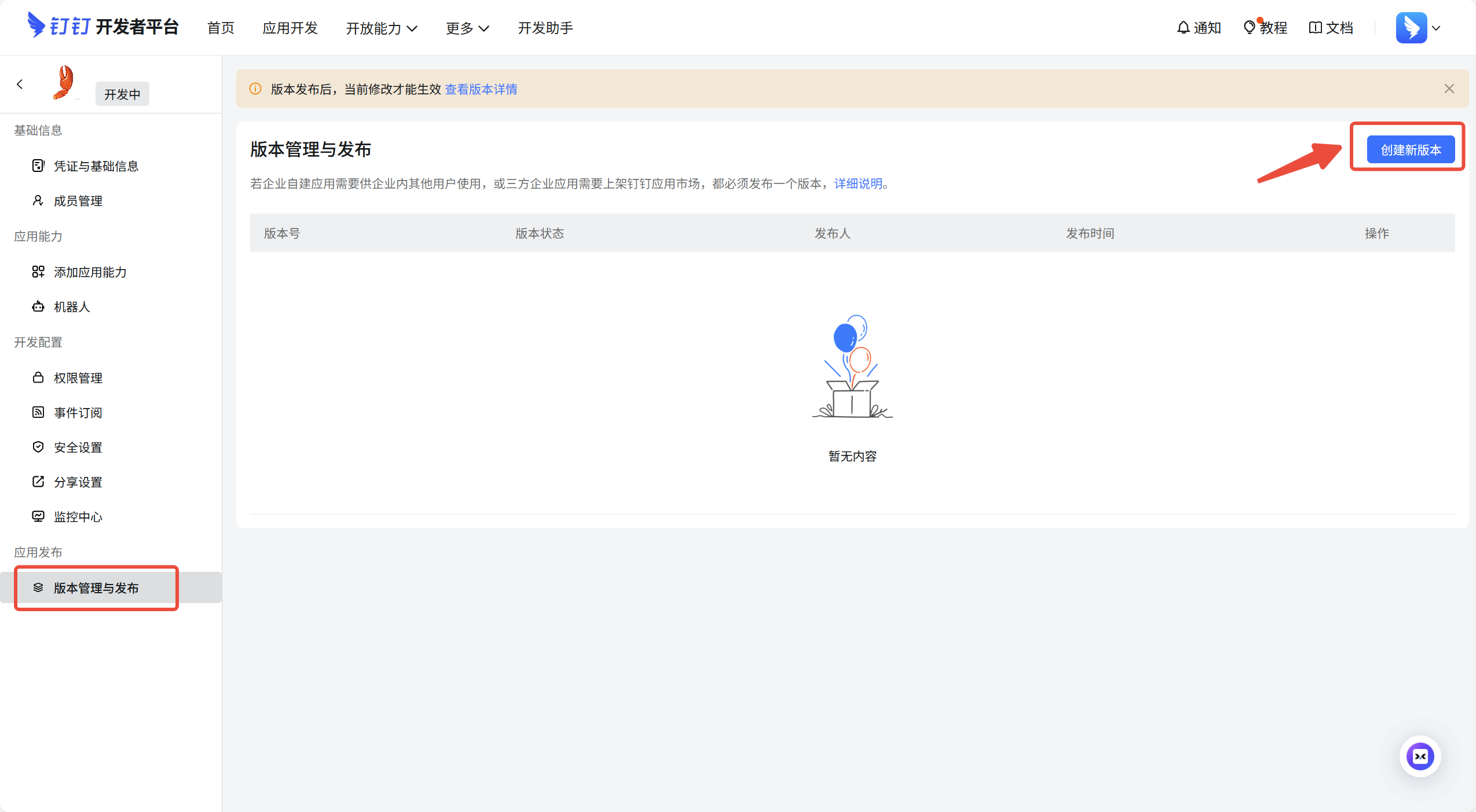
- Enter "Application Version Number" and "Version Description" and Save to complete publishing
- Select "Credentials and Basic Information", copy APP ID and Client Secret to BAIclaw and save to connect
4. Search and Use the Robot
Search for the "Robot Name" you just created in the search box of the DingTalk Messages bar, and it will be displayed under the function bar.