Connect B.AI with Magpie
Magpie is a local model-management tool that uses a menu-bar interface and a local gateway to manage providers, model selection, and request routing. Add B.AI once, then select B.AI models for the AI clients connected to Magpie.
This guide covers the macOS interface in Magpie 0.1.3963. Interface labels and available models may change in later versions.
How It Works
Requests travel from your AI client through Magpie's local gateway to B.AI, then to the model. For example:
AI client -> Magpie (127.0.0.1:3425) -> api.b.ai -> model
Magpie centralizes provider settings and model selection across clients, and provides usage and request records by client and model. The gateway address should match the one shown in your Magpie installation.
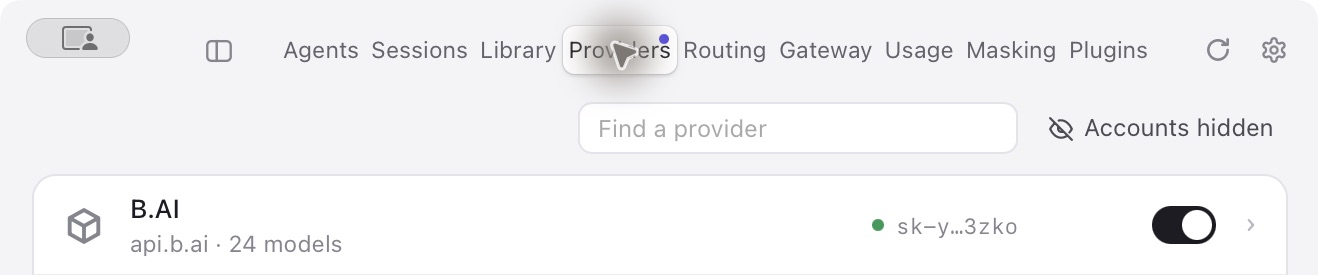
Figure 1: B.AI enabled in the provider list. Account information is hidden and the API Key is masked.
1. Before You Begin
- Install and open Magpie from its official website.
- Install the AI client you want to connect, such as Claude Code.
- Obtain a B.AI API Key from the API Key page, and confirm that your account has sufficient balance.
Keep your API Key private. Do not include it in screenshots, shared configuration, or source control.
2. Add B.AI as a Provider
- Open Providers → Add Provider and choose a custom provider.
- Enter the following settings. Switch the protocol tab to configure the corresponding Base URL.
| Setting | Value |
|---|---|
| Name | B.AI |
| Provider ID | bai |
| OpenAI-compatible Base URL | https://api.b.ai/v1 |
| Anthropic-compatible Base URL, optional | https://api.b.ai |
| API Key | Your B.AI API Key |
- Save the provider, enable B.AI, and fetch or refresh the model list.
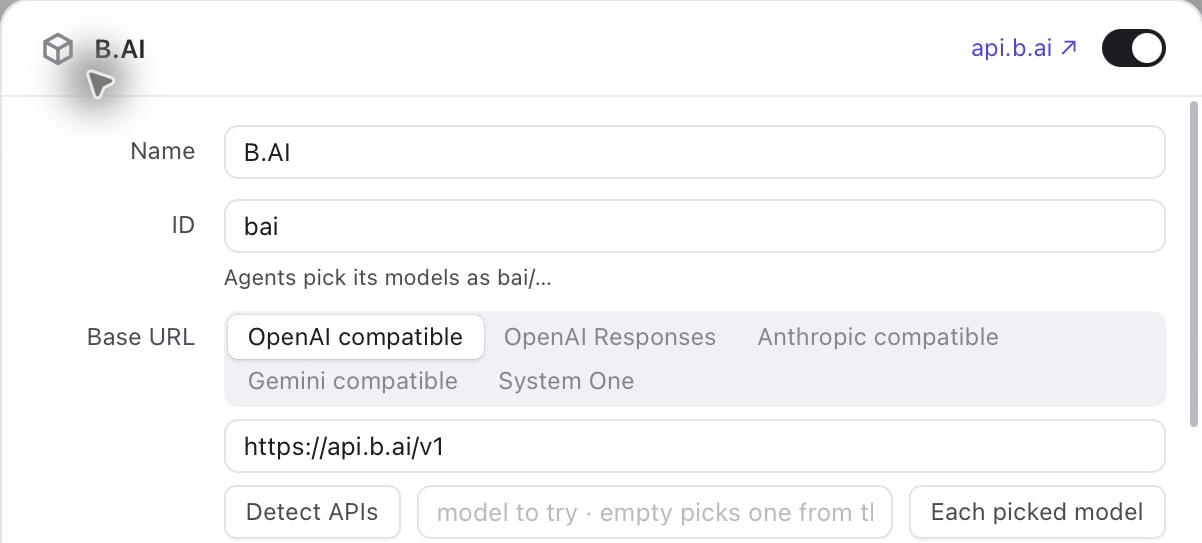
Figure 2: Configure B.AI under the appropriate protocol tab.
The OpenAI-compatible address includes /v1; the Anthropic-compatible address uses the root URL. These are B.AI's upstream addresses, not Magpie's local gateway address.
3. Select a B.AI Model for Your Client
- Return to Agents, select an installed client, and connect it to Magpie.
- Select a model under B.AI in the model list, for example
bai/gpt-5.4-mini. Here,baiis the provider ID configured above; use a model available to your Key and compatible with the client's protocol and tools. - Follow the interface prompts to reopen the client or start a new session, then send a short message.
Reply with exactly: BAI_MAGPIE_OK
Adding a provider does not automatically connect every client. Configure the client you intend to use on the Agents page.
4. Verify the Connection
- Confirm that the client receives a model response.
- Open Usage or the request records in Magpie and confirm that the provider is B.AI and the model matches your selection.
- Check the corresponding usage and charges in B.AI. Verification requests incur normal usage charges.
A successful model-list fetch alone does not verify a model call. Requests still go to B.AI through Magpie; actual charges are subject to B.AI billing records.
Optional: Configure Fallback Routing
You can add models to a routing group to try a fallback when a model fails or has insufficient quota. Configure fallback models as needed and check the actual provider and model in the request records.
Troubleshooting
| Issue | What to Check |
|---|---|
401 / 403 | Verify the API Key and account/model access permissions. |
| Insufficient balance | Check the balance associated with the B.AI Key. |
| Connection failure | Confirm Magpie is running and the client uses the correct local gateway address. |
| Model missing | Refresh the model list and check whether display filters hide it. |
| Model switch has no effect | Reopen the client or start a new session, then inspect the request records. |